Configure Google Cloud KMS for CMEK
Use Google Cloud KMS to provide an encryption key for your organization.
Claude Code
Let Claude Code set up this feature for you
/claude-api help me configure a customer-managed encryption key with Google Cloud KMSThis guide shows how to use a Google Cloud KMS key as a customer-managed encryption key (CMEK) for your Anthropic organization.
Prerequisites
- A Google Cloud project with billing enabled.
- The Cloud KMS API enabled (
cloudkms.googleapis.com). - Permissions to create KMS key rings and keys, and to set IAM policy on them (
roles/cloudkms.adminor equivalent). - Cloud KMS Data Access audit logs (Data Read and Data Write) turned on for the project, so that Cloud Logging records Anthropic's use of your key. They're off by default. To turn them on, see Google's Enable Data Access audit logs.
- To create the key from the command line, the
gcloudCLI installed and authenticated. - To register the key through the API, an Anthropic Admin API key for your organization.
Anthropic service account email
In this guide, you give the following Anthropic service account access to your key:
anthropic-cmek-client-us@gcp-anthropic-cmek-clients.iam.gserviceaccount.comEncryption key setup
The key must meet these requirements:
- Location: Use a single-region US location, such as
us-east5. Multi-region locations such asusandglobalaren't supported. See Availability and regions. - Type: Use a symmetric key with the
ENCRYPT_DECRYPTpurpose. Anthropic strongly recommends HSM protection. - Organization label: Add the label
anthropic-org-<ORGANIZATION_UUID>with the valuetrue. Replace<ORGANIZATION_UUID>with your Anthropic organization ID in lowercase. Validation fails without this label. To label an existing key, see Keys you already have. - Access: Give Anthropic's service account the
roles/cloudkms.cryptoKeyEncrypterDecrypterandroles/cloudkms.viewerroles on the key itself.
Create or choose a key ring
In the Google Cloud console, go to the Key management page. Open a key ring in a single-region US location, such as
us-east5, or create one.Configure the key
Click Create key and enter a name. Select these options:
- Protection level: HSM
- Key material: Generated key
- Purpose: Symmetric encrypt/decrypt
- Algorithm: Google symmetric key
Add the organization label
Click Additional settings, then Add label. Enter the organization label:
- Key 1:
anthropic-org-<ORGANIZATION_UUID> - Value 1:
true
Click Create.
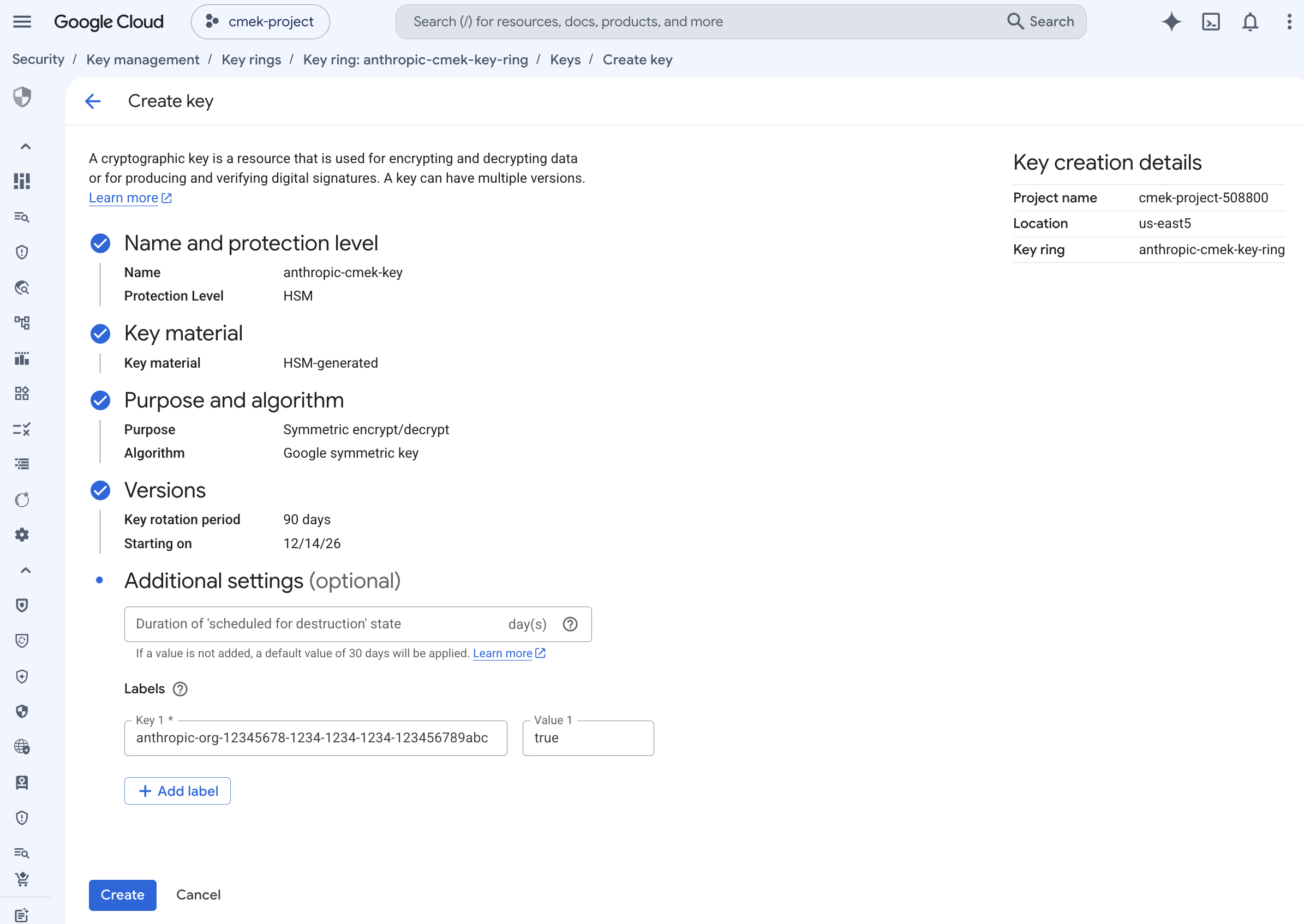
An HSM-protected symmetric encrypt/decrypt key with the organization label. - Key 1:
Open the key's permissions
On the key ring details page, select the checkbox next to the key. Open the Permissions panel and click Grant access.
Grant Anthropic's service account access to the key
Check that Resource shows the key, not the key ring or project. Enter these values:
- New principals:
anthropic-cmek-client-us@gcp-anthropic-cmek-clients.iam.gserviceaccount.com - Role: Cloud KMS CryptoKey Encrypter/Decrypter
Click Add another role and select Cloud KMS Viewer. Click Save.
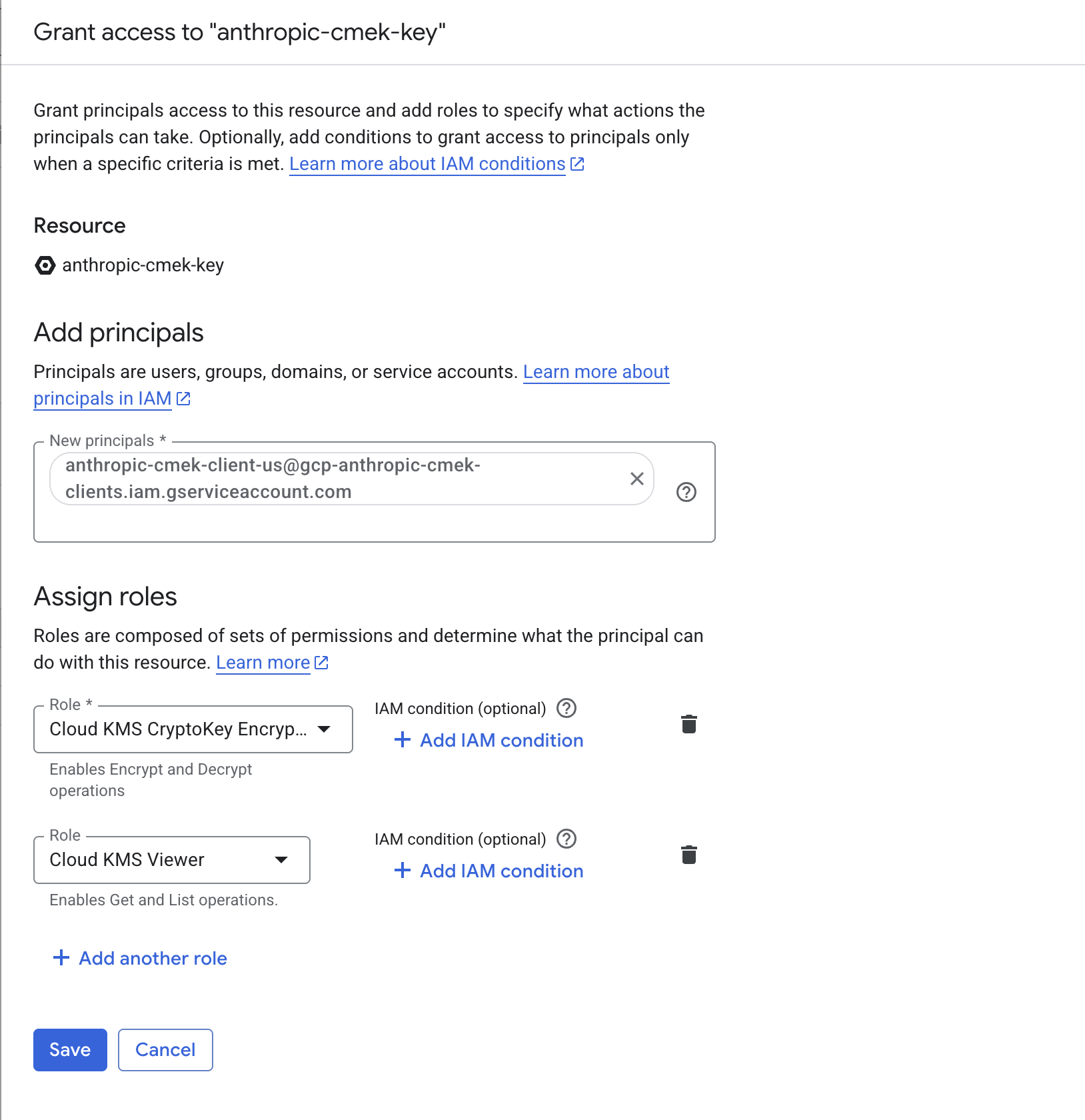
Grant the Anthropic service account both roles, scoped to the key. - New principals:
Copy the full key resource name
On the key ring details page, open the key's Actions menu and click Copy resource name.
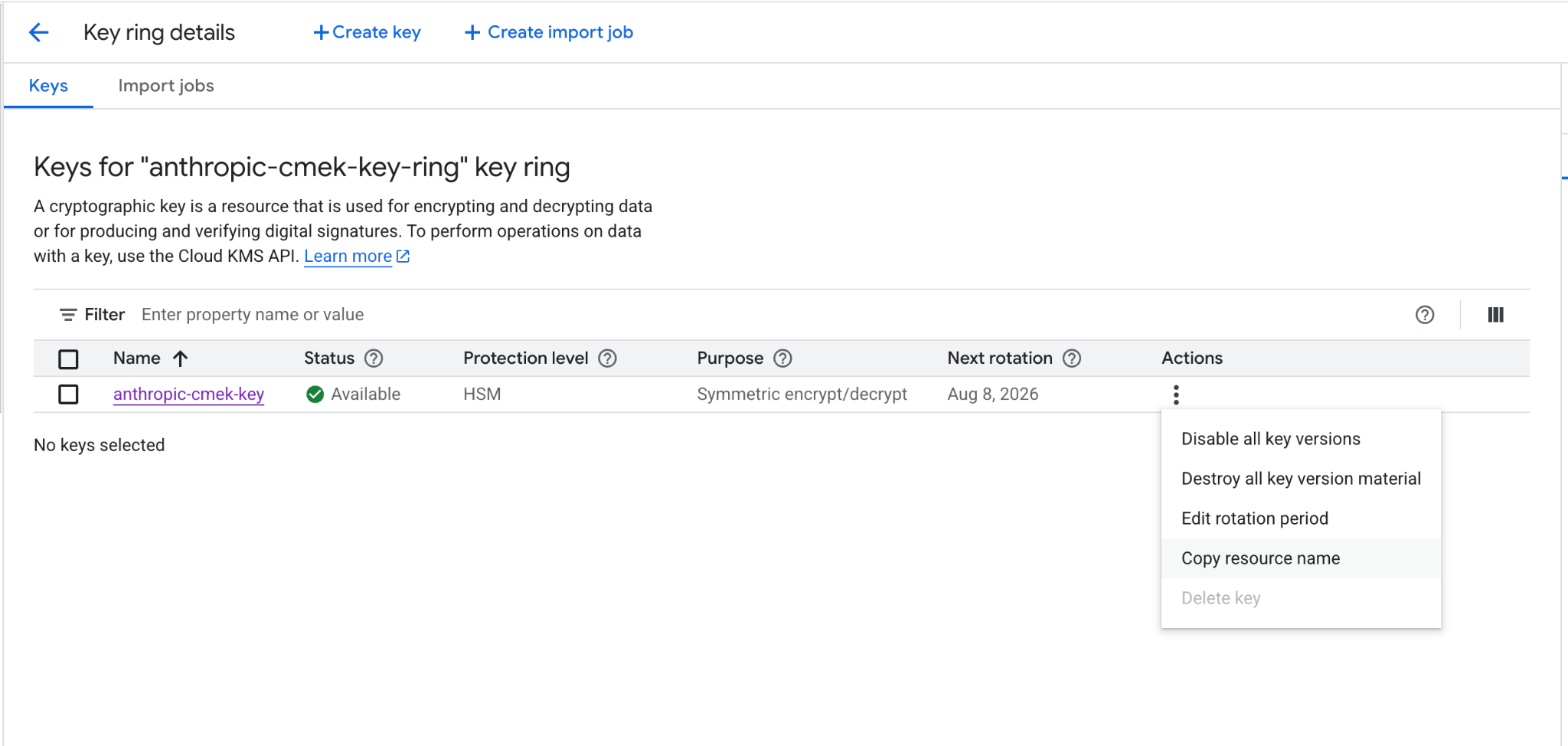
Copy the key's full resource name from the actions menu.
In each command, replace these placeholders:
<your-project-id>: your Google Cloud project ID<region>: the key's location, such asus-east5<your-keyring-name>: the key ring's name<your-key-name>: the key's name<ORGANIZATION_UUID>: your Anthropic organization ID in lowercase
Create or choose a key ring
Skip this step if you already have a key ring to reuse.
gcloud kms keyrings create <your-keyring-name> \ --project=<your-project-id> \ --location=<region>Create the key
gcloud kms keys create <your-key-name> \ --project=<your-project-id> \ --location=<region> \ --keyring=<your-keyring-name> \ --purpose=encryption \ --protection-level=hsm \ --labels=anthropic-org-<ORGANIZATION_UUID>=trueFor software protection, omit
--protection-level=hsm.Grant Anthropic's service account access to the key
Run both commands:
gcloud kms keys add-iam-policy-binding <your-key-name> \ --project=<your-project-id> \ --location=<region> \ --keyring=<your-keyring-name> \ --member="serviceAccount:anthropic-cmek-client-us@gcp-anthropic-cmek-clients.iam.gserviceaccount.com" \ --role=roles/cloudkms.cryptoKeyEncrypterDecryptergcloud kms keys add-iam-policy-binding <your-key-name> \ --project=<your-project-id> \ --location=<region> \ --keyring=<your-keyring-name> \ --member="serviceAccount:anthropic-cmek-client-us@gcp-anthropic-cmek-clients.iam.gserviceaccount.com" \ --role=roles/cloudkms.viewerGet the full key resource name
gcloud kms keys describe <your-key-name> \
  --project=<your-project-id> \
  --location=<region> \
  --keyring=<your-keyring-name> \
  --format="value(name)"
You register the key with its full resource name, in this format:
projects/<your-project-id>/locations/<region>/keyRings/<your-keyring-name>/cryptoKeys/<your-key-name>Register the key with Anthropic
Open the encryption key settings
In the Claude Console, go to the Data retention page (
platform.claude.com/settings/privacy). If you don't see Encryption keys, select Organization from the dropdown menu at the top of the page.Add the key
Under Encryption keys, click Add key. Enter a Display name and select Google Cloud KMS. Click Continue.
Enter the key resource name
The dialog box shows an Organization label. Check that your key has this label. Paste the full key resource name into Key resource name and click Add.
Validate the key
In the Encryption keys list, click Verify next to the key. Connected appears when the check passes. If it fails, see Troubleshoot validation for common causes.
Attach the key to a workspace
Attaching a key can't be undone. If you can, attach it to a new workspace before that workspace receives any requests. In a workspace that already receives requests, the key can take up to a day to take effect.
On the Data retention page, select the workspace from the dropdown menu at the top of the page. Under Encryption key, select the key and click Save.
Confirm the change
Select the checkbox to confirm that you have read the CMEK documentation, then click Confirm.
Create the external key
Replace
<friendly-name>with a display name. Replace the value that starts withprojects/with the full key resource name.Pythonclient = anthropic.Anthropic() external_key = client.organization.external_keys.create( display_name="<friendly-name>", geo="us", provider_config={ "type": "gcp", "key_name": "projects/<your-project-id>/locations/<region>/keyRings/<your-keyring-name>/cryptoKeys/<your-key-name>", }, ) print(f"id: {external_key.id}") print(f"display_name: {external_key.display_name}")The
idfield of the response contains the external key ID. Copy it for the next two steps:{ "type": "external_key", "id": "ekey_<id>", "display_name": "<friendly-name>" }Validate the key
Replace
ekey_<id>with the external key ID.Pythonclient = anthropic.Anthropic() validation = client.organization.external_keys.validate("ekey_<id>") print(f"status: {validation.status}") print(f"error: {validation.error}")A successful response looks like this:
{ "type": "external_key_validation", "status": "success", "error": null }If validation fails, see Troubleshoot validation.
Attach the key to a workspace
Attaching a key can't be undone. If you can, attach it to a new workspace before that workspace receives any requests. In a workspace that already receives requests, the key can take up to a day to take effect.
Replace
<workspace-id>with the workspace ID andekey_<id>with the external key ID.Pythonclient = anthropic.Anthropic() workspace = client.organization.workspaces.update( "<workspace-id>", external_key_id="ekey_<id>" ) print(f"id: {workspace.id}") print(f"external_key_id: {workspace.external_key_id}")
On Claude Enterprise, CMEK applies to the whole organization, and an organization can have only one key.
Open the encryption key settings
Go to claude.ai > Organization settings > Data and privacy and find Encryption keys.
Add the key
Click Add key. Enter a Display name and select Google Cloud KMS. Select the checkbox to confirm that you have read the CMEK documentation, then click Continue.
Enter the key resource name
The dialog box shows an Organization label. Check that your key has this label. Paste the full key resource name into Key resource name and click Add.
Confirm that validation passed
When the check passes, Encryption key configured appears, and your organization is CMEK-protected from then on. If the check fails, see Troubleshoot validation.
Troubleshoot validation
If validation fails, common causes are:
- Wrong organization label: Make sure the key has the organization label, with your bare organization ID in lowercase.
- VPC Service Controls: A service perimeter that protects Cloud KMS in your project can block Anthropic. Add Anthropic to an access level on the perimeter, or exclude the key's project from it.
- Domain restricted sharing: The
constraints/iam.allowedPolicyMemberDomainsorg policy blocks the binding for Anthropic's service account. To check that the binding is there, rungcloud kms keys get-iam-policy <your-key-name> --project=<your-project-id> --location=<region> --keyring=<your-keyring-name>. To allow it, see Anthropic service account email. - Disabled or destroyed key version: Confirm that the key's primary version is enabled.
Terraform
To create the key with Terraform, use the google_kms_key_ring, google_kms_crypto_key, and google_kms_crypto_key_iam_member resources from the google provider.
Was this page helpful?