Configure AWS KMS for CMEK
Use AWS KMS to provide an encryption key for your organization.
Claude Code
Let Claude Code set up this feature for you
/claude-api help me configure a customer-managed encryption key with AWS KMSThis guide shows how to use an AWS KMS key as a customer-managed encryption key (CMEK) for your Anthropic organization.
Prerequisites
- An AWS account with permissions to create KMS keys and set key policies (
kms:CreateKeyandkms:PutKeyPolicy). - To create the key from the command line, the AWS CLI installed and authenticated.
- To register the key through the API, an Anthropic Admin API key for your organization.
Amazon Resource Name (ARN) for Anthropic
The key policy in this guide gives the following Anthropic IAM role access to your key:
arn:aws:iam::915198916910:role/anthropic-cmek-client-usEncryption key setup
Prepare the key policy
Copy this policy into a text editor:
{
  "Version": "2012-10-17",
  "Statement": [
    {
      "Sid": "AccountRootAdmin",
      "Effect": "Allow",
      "Principal": {
        "AWS": "arn:aws:iam::<AWS_ACCOUNT_ID>:root"
      },
      "Action": "kms:*",
      "Resource": "*"
    },
    {
      "Sid": "AllowAnthropicCMEKCrypto",
      "Effect": "Allow",
      "Principal": {
        "AWS": "arn:aws:iam::915198916910:role/anthropic-cmek-client-us"
      },
      "Action": ["kms:Encrypt", "kms:Decrypt"],
      "Resource": "*",
      "Condition": {
        "StringEquals": {
          "kms:EncryptionContext:anthropic:org_uuid": ["<ORGANIZATION_UUID>"]
        }
      }
    },
    {
      "Sid": "AllowAnthropicCMEKDescribe",
      "Effect": "Allow",
      "Principal": {
        "AWS": "arn:aws:iam::915198916910:role/anthropic-cmek-client-us"
      },
      "Action": "kms:DescribeKey",
      "Resource": "*"
    }
  ]
}
Replace the two placeholders:
<AWS_ACCOUNT_ID>: your AWS account ID. To print it with the AWS CLI, runaws sts get-caller-identity --query Account --output text.<ORGANIZATION_UUID>: your Anthropic organization ID
Don't remove the kms:EncryptionContext:anthropic:org_uuid condition, or validation fails. To share one key among several Anthropic organizations, list each organization ID in it. To limit the key to specific workspaces, see the optional workspace condition.
Create the key
Create the key in a US region. For the lowest latency, use us-east-2.
Open the Create key wizard
Open the AWS KMS console and switch to the region for the key. Go to Customer managed keys and click Create key.
Configure key
Make sure that these options are selected:
- Key type: Symmetric
- Key usage: Encrypt and decrypt
- Advanced options > Key material origin: KMS
- Advanced options > Regionality: Single-Region key
Click Next.
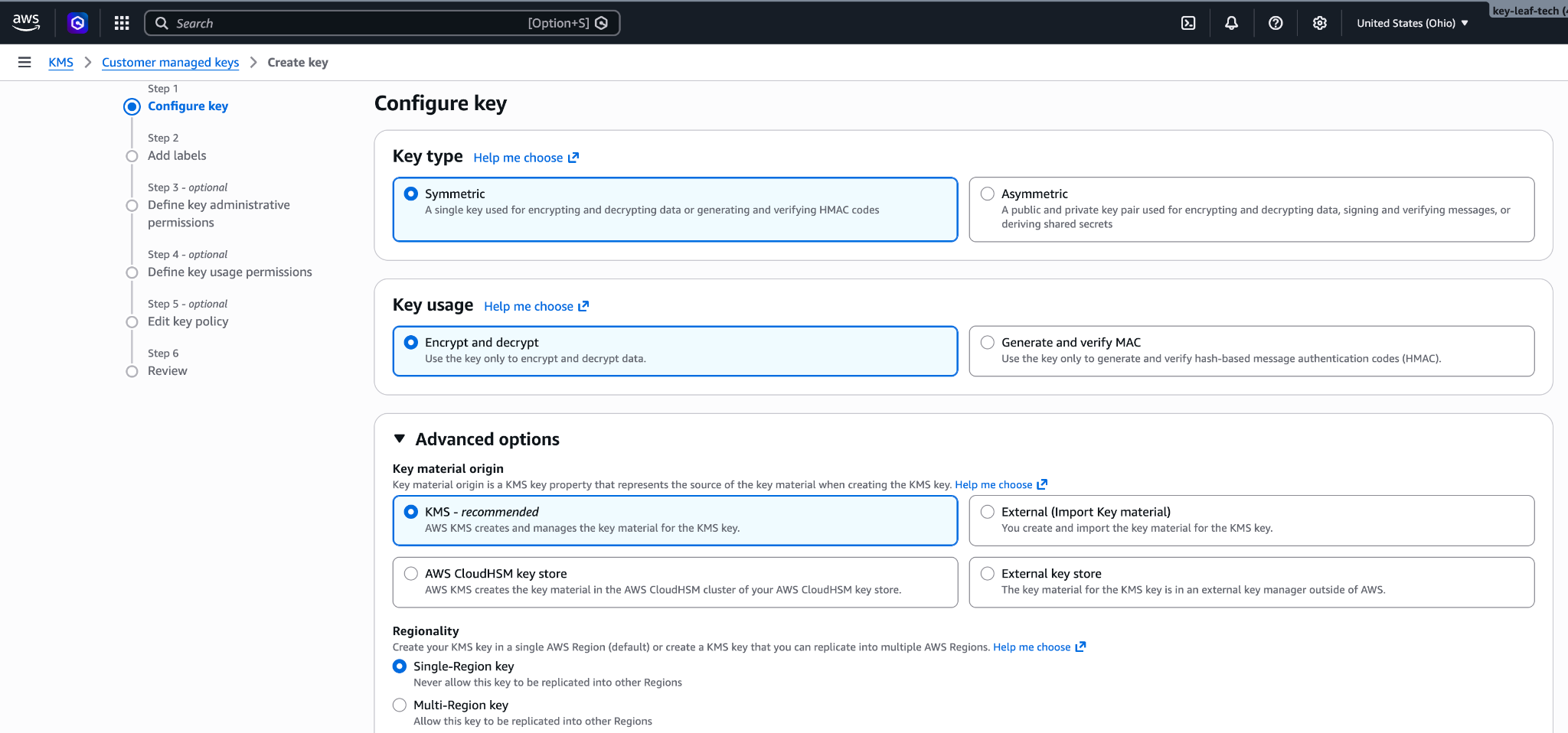
Symmetric, encrypt and decrypt, single-Region key. Add labels
Enter an Alias for the key, such as
anthropic-cmek. Click Next.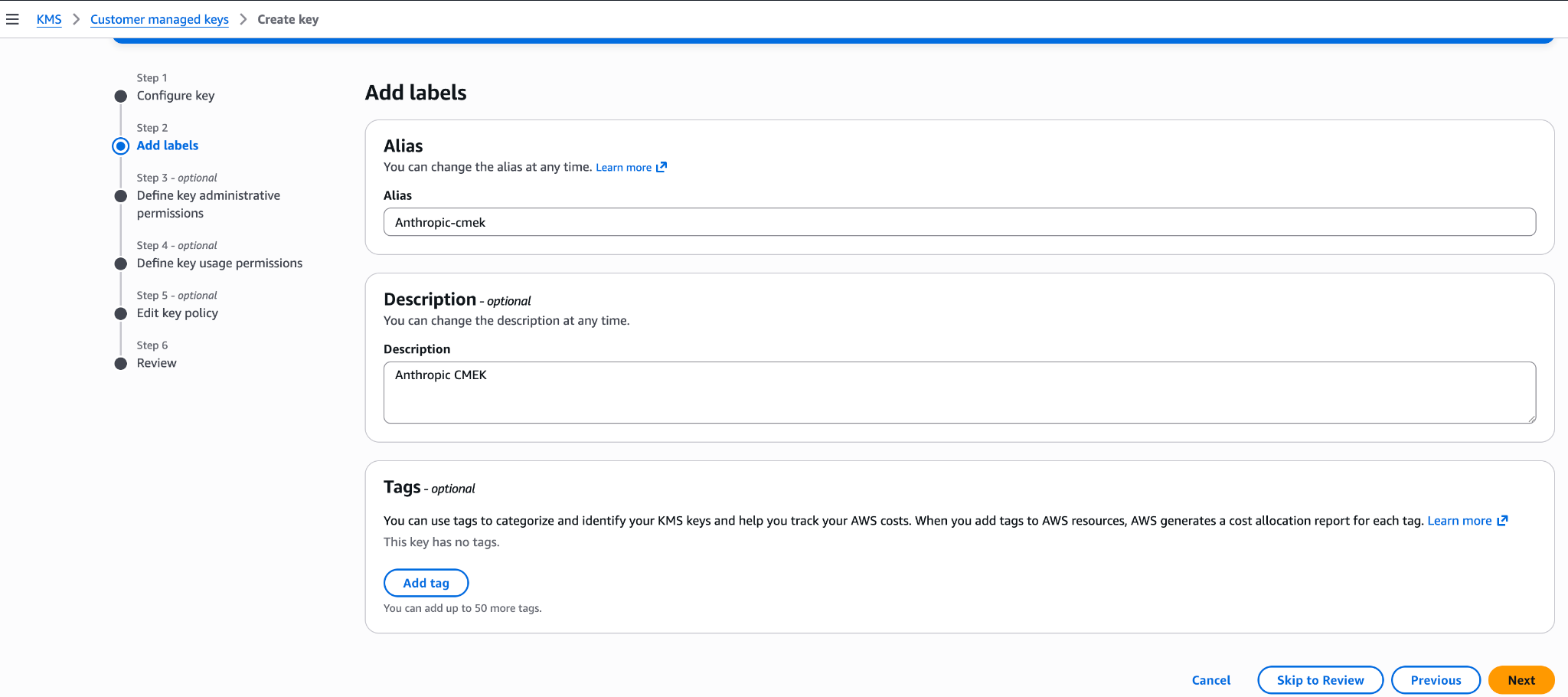
An alias for the key. Define key administrative permissions
Don't select any key administrators. Your key policy already gives your AWS account full admin control. Click Next.
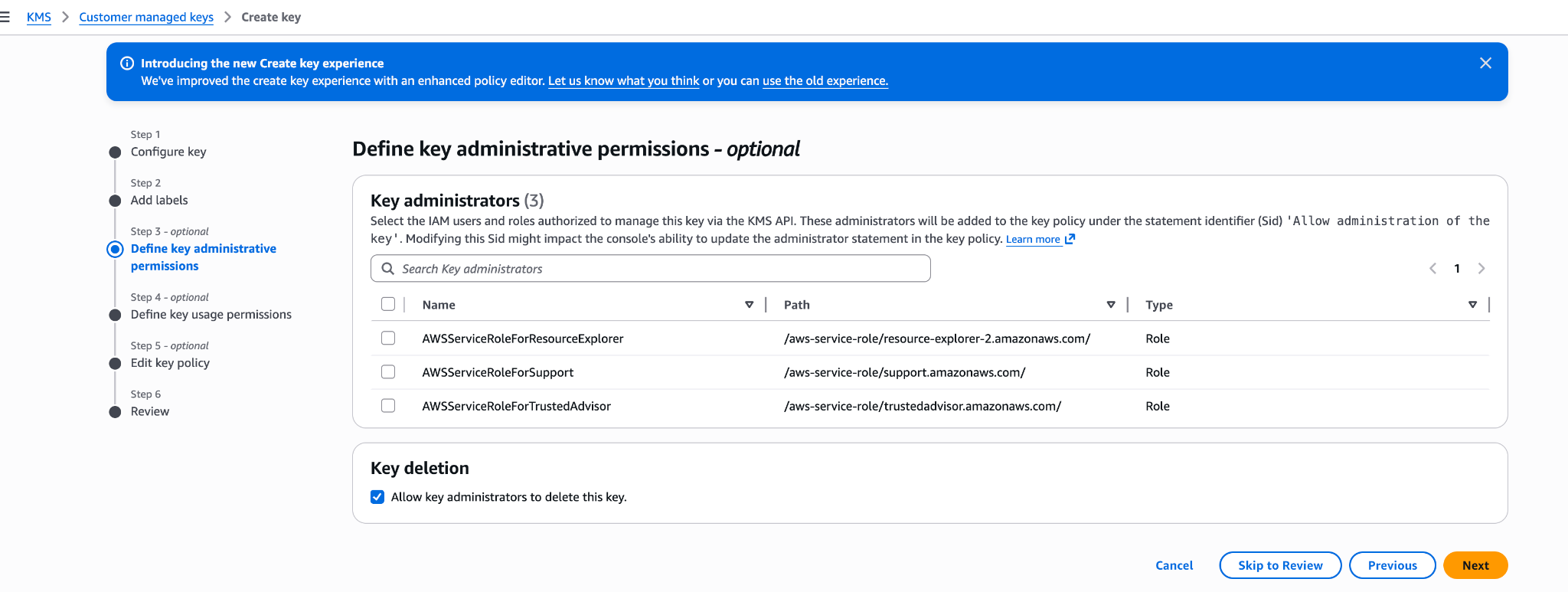
Leave key administrators empty. Define key usage permissions
Don't select any key users, and don't add anything under Other AWS accounts. Your key policy already grants the access that's needed. Click Next.
Edit key policy
Click Edit. Replace the whole policy with your key policy, then click Next.
Review
Click Finish.
Copy the key ARN
In Customer managed keys, open the new key and copy its ARN. You need the ARN to register the key.
To replace the key policy on a key that already exists:
- Open the key and click the Key policy tab.
- If you see Switch to policy view, click it.
- Click Edit.
- Replace the JSON with your key policy.
- Click Save changes.
Save your key policy as key-policy.json, then create the key. Replace <REGION> with the key's region.
aws kms create-key \
  --region <REGION> \
  --description "Anthropic CMEK" \
  --key-usage ENCRYPT_DECRYPT \
--policy file://key-policy.jsonCopy KeyMetadata.Arn from the output. You need it to register the key.
Register the key with Anthropic
Validating the key adds expected access-denied errors to CloudTrail. If you alert on these errors, see Expected errors in CloudTrail first.
Open the encryption key settings
In the Claude Console, go to the Data retention page (
platform.claude.com/settings/privacy). If you don't see Encryption keys, select Organization from the dropdown menu at the top of the page.Add the key
Under Encryption keys, click Add key. Enter a Display name and select AWS KMS. Click Continue.
Enter the key ARN
The dialog box shows the Organization ID for the key policy. Check that your key policy contains this ID. Paste the key ARN into KMS key ARN and click Add.
Validate the key
In the Encryption keys list, click Verify next to the key. Connected appears when the check passes. If it fails, see Troubleshoot validation for common causes.
Attach the key to a workspace
Attaching a key can't be undone. If you can, attach it to a new workspace before that workspace receives any requests. In a workspace that already receives requests, the key can take up to a day to take effect.
On the Data retention page, select the workspace from the dropdown menu at the top of the page. Under Encryption key, select the key and click Save.
Confirm the change
Select the checkbox to confirm that you have read the CMEK documentation, then click Confirm.
Create the external key
Replace
<friendly-name>with a display name and<key-arn-from-create-key-step>with the key ARN.Pythonclient = anthropic.Anthropic() external_key = client.organization.external_keys.create( display_name="<friendly-name>", geo="us", provider_config={"type": "aws", "kms_arn": "<key-arn-from-create-key-step>"}, ) print(f"id: {external_key.id}") print(f"display_name: {external_key.display_name}")The
idfield of the response contains the external key ID. Copy it for the next two steps:{ "type": "external_key", "id": "ekey_<id>", "display_name": "<friendly-name>" }Validate the key
Replace
ekey_<id>with the external key ID.Pythonclient = anthropic.Anthropic() validation = client.organization.external_keys.validate("ekey_<id>") print(f"status: {validation.status}") print(f"error: {validation.error}")A successful response looks like this:
{ "type": "external_key_validation", "status": "success", "error": null }If validation fails, see Troubleshoot validation.
Attach the key to a workspace
Attaching a key can't be undone. If you can, attach it to a new workspace before that workspace receives any requests. In a workspace that already receives requests, the key can take up to a day to take effect.
Replace
<workspace-id>with the workspace ID andekey_<id>with the external key ID.Pythonclient = anthropic.Anthropic() workspace = client.organization.workspaces.update( "<workspace-id>", external_key_id="ekey_<id>" ) print(f"id: {workspace.id}") print(f"external_key_id: {workspace.external_key_id}")
On Claude Enterprise, CMEK applies to the whole organization, and an organization can have only one key.
Open the encryption key settings
Go to claude.ai > Organization settings > Data and privacy and find Encryption keys.
Add the key
Click Add key. Enter a Display name and select AWS KMS. Select the checkbox to confirm that you have read the CMEK documentation, then click Continue.
Enter the key ARN
The dialog box shows the Organization ID for the key policy. Check that your key policy contains this ID. Paste the key ARN into KMS key ARN and click Add.
Confirm that validation passed
When the check passes, Encryption key configured appears, and your organization is CMEK-protected from then on. If the check fails, see Troubleshoot validation.
Troubleshoot validation
If validation fails, common causes are:
- Wrong organization ID: Make sure the
org_uuidcondition lists your bare organization ID, not theorg_-prefixed ID. - Encryption context mismatch: If the policy has a
kms:EncryptionContext:anthropic:compartment_uuidcondition, make sure it lists the compartment ID of each workspace the key is attached to. On an older key, the compartment statement might still allowkms:Encrypt. In that case, keep the all-zeros value (00000000-0000-0000-0000-000000000000) in the list too. - Resource control policies (RCPs): Some RCPs deny KMS operations when
aws:PrincipalOrgIDdoes not match your AWS organization. An RCP like this blocks Anthropic's role. Add an exception to it for this key or for Anthropic's role ARN. Service control policies do not apply here. - Access granted through IAM instead of the key policy: Grant Anthropic's role access in the key policy itself, not through an IAM policy in your account. To check the key policy, run
aws kms get-key-policy --region <REGION> --key-id <KEY_ARN> --policy-name default. - Region mismatch: Confirm that the key is in a US region.
Expected errors in CloudTrail
Anthropic validates the key whenever you verify it, attach it to a workspace, or view it in the Claude Enterprise settings. Each validation adds four access-denied errors to CloudTrail. These errors are expected.
To filter them out, match all three of these values:
requestParameters.encryptionContext.associatedData:Y21lay12YWxpZGF0aW9uuserIdentity.accountId:915198916910resources.ARN:arn:aws:kms:<REGION>:<AWS_ACCOUNT_ID>:key/<KEY_ID>
The first value alone isn't enough, because any caller can set it.
Terraform
To create the key with Terraform, use the aws_kms_key and aws_kms_alias resources from the aws provider.
Was this page helpful?