Configure Azure Key Vault for CMEK
Use Azure Key Vault to provide an encryption key for your organization.
Claude Code
Let Claude Code set up this feature for you
/claude-api help me configure a customer-managed encryption key with Azure Key VaultThis guide shows how to use an Azure Key Vault key as a customer-managed encryption key (CMEK) for your Anthropic organization.
Prerequisites
- An Azure Key Vault with these settings:
- RBAC authorization is enabled (
enableRbacAuthorization: true). - Public network access is allowed. Private endpoints are not supported.
- Purge protection is enabled (
enablePurgeProtection: true). You can't turn off purge protection after you enable it. - Diagnostic settings route the
AuditEventlog category to Log Analytics, a storage account, or an event hub. Without them, you have no audit trail of Anthropic's key operations, such asKeyWrap,KeyUnwrap, andKeyGet.
- RBAC authorization is enabled (
- Permissions to create keys in the vault and to assign RBAC roles on it.
- Permissions to create service principals in your Entra tenant (
Application Administrator,Cloud Application Administrator, or an equivalent custom role). - The
azCLI installed and authenticated, or Cloud Shell in the Azure portal. Some steps have no portal equivalent. - To register the key through the API, an Anthropic Admin API key for your organization.
Anthropic app information
You give the following Anthropic multitenant application access to your key. The application requests no Microsoft Graph permissions.
| Field | Value |
|---|---|
| Multitenant app client ID (US) | 8635ae1a-3e5d-44e8-a4ed-e0f614466f87 |
| App display name | anthropic-cmek-client-us |
Encryption key setup
The key must meet these requirements:
- Type: RSA, 3072-bit or larger. For an HSM-backed key, use
RSA-HSM, which requires a Premium-SKU vault. - Permitted operations:
wrapKeyandunwrapKey. The steps in this guide turn off every other operation, so Anthropic can only read the key and wrap and unwrap with it. - Organization tag:
anthropic-org-<ORGANIZATION_UUID>with the valuetrue. Replace<ORGANIZATION_UUID>with your Anthropic organization ID in lowercase. Validation fails without the tag. - Access: the
Key Vault Crypto Userrole for Anthropic's service principal, assigned on the key.
Create the key and grant access
Create Anthropic's service principal
Open Cloud Shell from the portal's top navigation bar. Run this command:
az ad sp create --id 8635ae1a-3e5d-44e8-a4ed-e0f614466f87If the service principal already exists, continue to the next step.
Confirm the service principal exists
Go to Microsoft Entra ID > Enterprise applications and clear the default application-type filter. Search for
anthropic-cmek-client-us.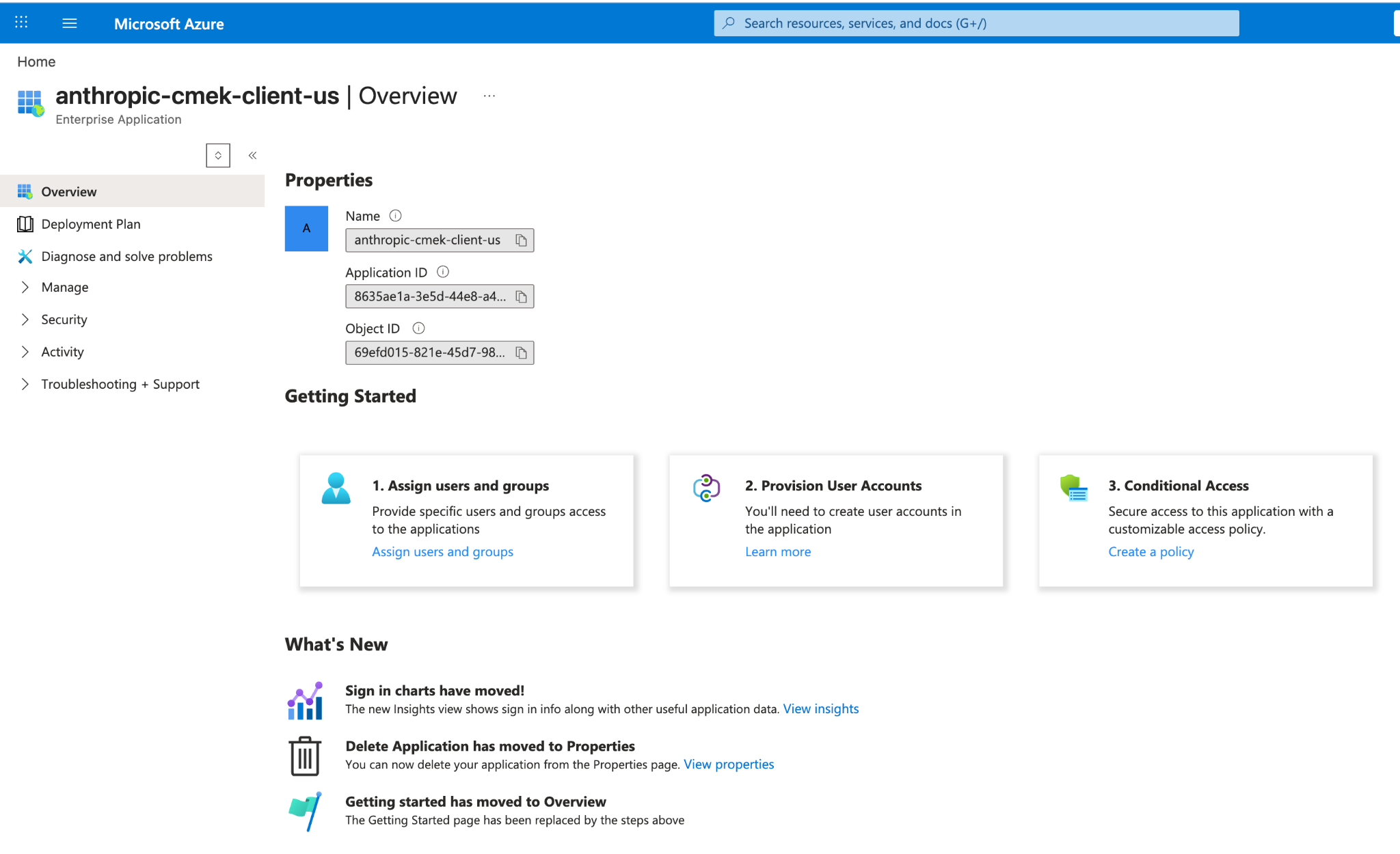
The anthropic-cmek-client-us service principal in Entra enterprise applications. Open the Create a key page
Open your key vault and select Keys. Click Generate/Import.
Create an RSA key in your vault
Set these values:
- Name: a name for the key
- Key type: RSA
- RSA key size: 3072 or larger
Click the link next to Tags.
Add the organization tag
Enter these values:
- Tag Name:
anthropic-org-<ORGANIZATION_UUID> - Tag Value:
true
Click OK, then click Create.
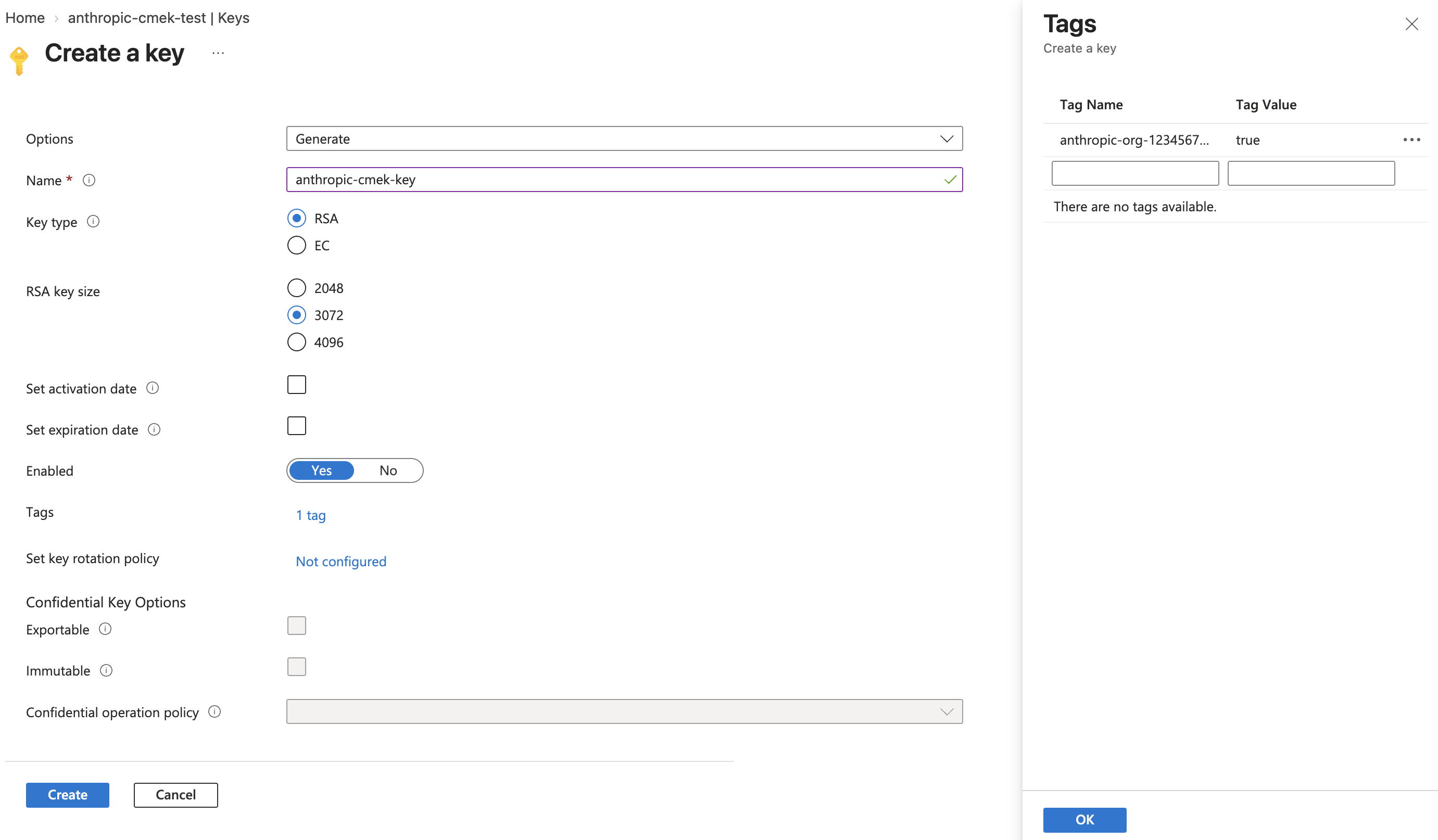
Create an RSA key sized 3072 or larger, with the tag anthropic-org-<ORGANIZATION_UUID> set to true. - Tag Name:
Limit the permitted operations
Open the new key, then open its current version. Under Permitted operations, clear every checkbox except Wrap Key and Unwrap Key. Click Save.
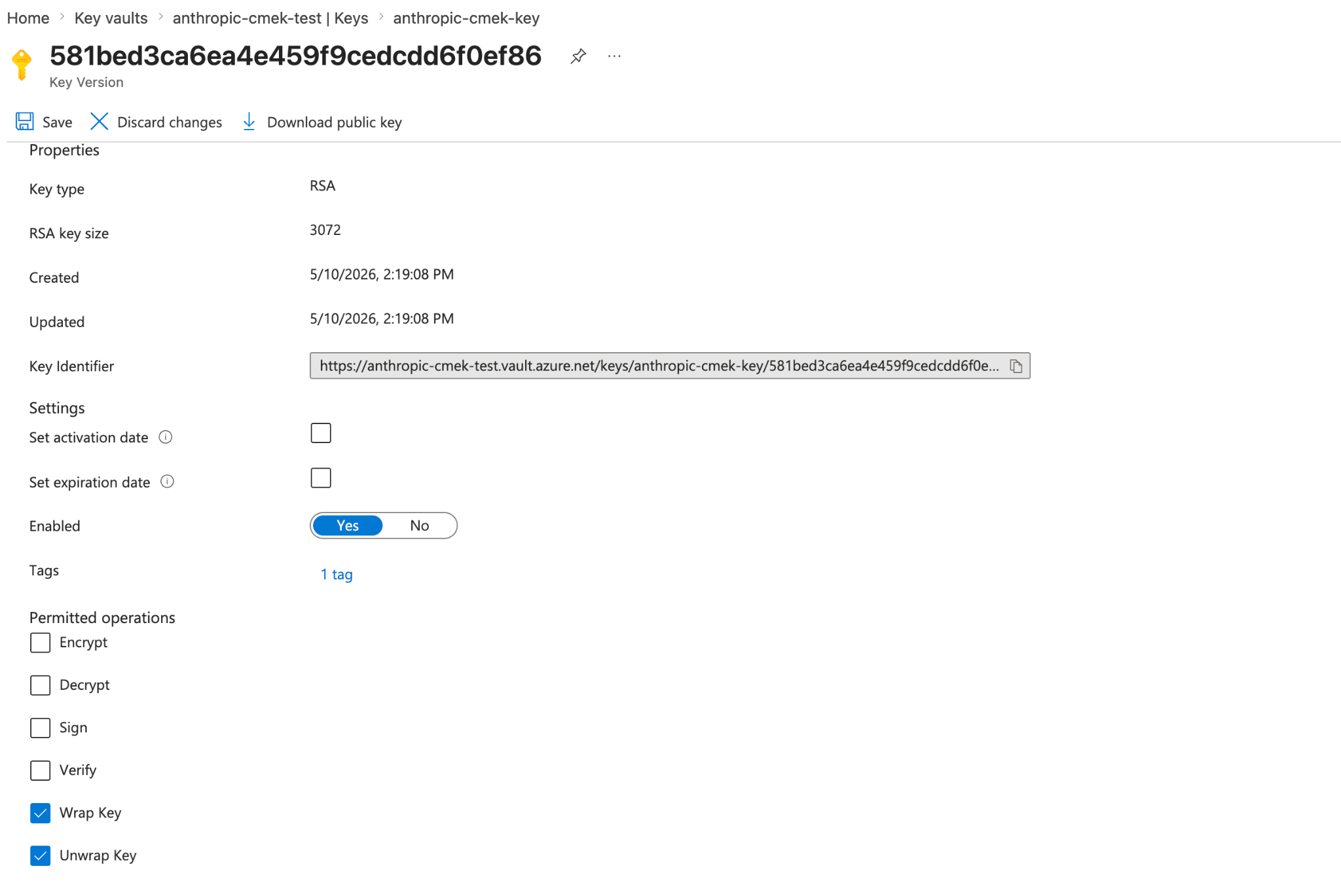
Restrict permitted operations to Wrap Key and Unwrap Key. The key version shows the organization tag. Open the key's access control
Open the key itself, not the vault. Select its Access control (IAM) tab and click Add > Add role assignment.
Select the role
On the Role tab, select Key Vault Crypto User. Click Next.
Add Anthropic's service principal
On the Members tab, click Select members. Search for
anthropic-cmek-client-usand select it. Click Select, then click Next.Review and assign
On the Review + assign tab, click Review + assign.
To use a key you already have, follow these steps instead of steps 3 to 6, then continue from step 7:
- In your key vault, select Keys and open the key. Open its current version.
- Click the link next to Tags.
- Add the organization tag and click OK.
- Under Permitted operations, clear every checkbox except Wrap Key and Unwrap Key.
- Click Save.
Create Anthropic's service principal
az ad sp create --id 8635ae1a-3e5d-44e8-a4ed-e0f614466f87Copy the
idfield from the output.If the command exits with an "already exists" error, get the
idwith this command instead:az ad sp show --id 8635ae1a-3e5d-44e8-a4ed-e0f614466f87 --query id -o tsvCreate an RSA key in your vault
az keyvault key create \ --vault-name <your-vault-name> \ --name <your-key-name> \ --kty RSA --size 3072 \ --ops wrapKey unwrapKey \ --tags anthropic-org-<ORGANIZATION_UUID>=trueReplace the placeholders:
<your-vault-name>: the name of your key vault<your-key-name>: a name for the key<ORGANIZATION_UUID>: your Anthropic organization ID in lowercase
For an HSM-backed key, use
--kty RSA-HSM.Grant the Anthropic service principal access to your key
VAULT_ID=$(az keyvault show --name <your-vault-name> --query id -o tsv) az role assignment create \ --role "Key Vault Crypto User" \ --assignee-object-id <sp-object-id> \ --assignee-principal-type ServicePrincipal \ --scope "${VAULT_ID}/keys/<your-key-name>"Replace the placeholders:
<your-vault-name>: the name of your key vault<sp-object-id>: theidvalue from the first step<your-key-name>: the name of the key
To use a key you already have, run this command instead of step 2:
az keyvault key set-attributes \
  --vault-name <your-vault-name> \
  --name <your-key-name> \
  --ops wrapKey unwrapKey \
--tags anthropic-org-<ORGANIZATION_UUID>=trueThis replaces the version's existing tags. Add each existing tag to --tags as name=value.
Check your vault configuration
Run this command with the Azure CLI or in Cloud Shell. Replace <your-vault-name> with the name of your key vault.
az keyvault show --name <your-vault-name> \
--query "{rbac:properties.enableRbacAuthorization, purge:properties.enablePurgeProtection, pub:properties.publicNetworkAccess, net:properties.networkAcls.defaultAction, ipRules:properties.networkAcls.ipRules, uri:properties.vaultUri, tenantId:properties.tenantId}"Confirm these values:
rbac:truepurge:true. If it'sfalseornull, enable purge protection before you continue.pub:"Enabled". If it's"Disabled", turn on public network access.net:"Allow", or"Deny"with Anthropic's outbound IP ranges inipRules. For the ranges, see Outbound IP addresses.
Copy these values to register the key:
uri: the vault URItenantId: the ID of the tenant that governs the vault
Register the key with Anthropic
Open the encryption key settings
In the Claude Console, go to the Data retention page (
platform.claude.com/settings/privacy). If you don't see Encryption keys, select Organization from the dropdown menu at the top of the page.Add the key
Under Encryption keys, click Add key. Enter a Display name and select Azure Key Vault. Click Continue.
Enter the key details
The dialog box shows an Organization tag. Check that your key has this tag. Enter these values:
- Vault URI: the
urivalue that you copied - Key name: the name of the key
- Tenant ID: the
tenantIdvalue that you copied
Click Add.
- Vault URI: the
Validate the key
In the Encryption keys list, click Verify next to the key. Connected appears when the check passes. If it fails, see Troubleshoot validation for common causes.
Attach the key to a workspace
Attaching a key can't be undone. If you can, attach it to a new workspace before that workspace receives any requests. In a workspace that already receives requests, the key can take up to a day to take effect.
On the Data retention page, select the workspace from the dropdown menu at the top of the page. Under Encryption key, select the key and click Save.
Confirm the change
Select the checkbox to confirm that you have read the CMEK documentation, then click Confirm.
Create the external key
Replace the placeholders:
<friendly-name>: a display name for the key<your-vault-name>: the name of your key vault<your-key-name>: the name of the key<your-tenant-id>: thetenantIdvalue that you copied
Pythonclient = anthropic.Anthropic() external_key = client.organization.external_keys.create( display_name="<friendly-name>", geo="us", provider_config={ "type": "azure", "vault_uri": "https://<your-vault-name>.vault.azure.net/", "key_name": "<your-key-name>", "tenant_id": "<your-tenant-id>", }, ) print(f"id: {external_key.id}") print(f"display_name: {external_key.display_name}")The
idfield of the response contains the external key ID. Copy it for the next two steps:{ "type": "external_key", "id": "ekey_<id>", "display_name": "<friendly-name>" }Validate the key
Replace
ekey_<id>with the external key ID.Pythonclient = anthropic.Anthropic() validation = client.organization.external_keys.validate("ekey_<id>") print(f"status: {validation.status}") print(f"error: {validation.error}")A successful response looks like this:
{ "type": "external_key_validation", "status": "success", "error": null }If validation fails, the
errorfield describes the problem. For common causes, see Troubleshoot validation.Attach the key to a workspace
Attaching a key can't be undone. If you can, attach it to a new workspace before that workspace receives any requests. In a workspace that already receives requests, the key can take up to a day to take effect.
Replace
<workspace-id>with the workspace ID andekey_<id>with the external key ID.Pythonclient = anthropic.Anthropic() workspace = client.organization.workspaces.update( "<workspace-id>", external_key_id="ekey_<id>" ) print(f"id: {workspace.id}") print(f"external_key_id: {workspace.external_key_id}")
On Claude Enterprise, CMEK applies to the whole organization, and an organization can have only one key.
Open the encryption key settings
Go to claude.ai > Organization settings > Data and privacy and find Encryption keys.
Add the key
Click Add key. Enter a Display name and select Azure Key Vault. Select the checkbox to confirm that you have read the CMEK documentation, then click Continue.
Enter the key details
The dialog box shows an Organization tag. Check that your key has this tag. Enter these values:
- Vault URI: the
urivalue that you copied - Key name: the name of the key
- Tenant ID: the
tenantIdvalue that you copied
Click Add.
- Vault URI: the
Confirm that validation passed
When the check passes, Encryption key configured appears, and your organization is CMEK-protected from then on. If the check fails, see Troubleshoot validation.
Troubleshoot validation
If validation fails, common causes are:
- Wrong organization tag: Make sure the key's current version has the tag
anthropic-org-<ORGANIZATION_UUID>with the valuetrue. The organization ID must be the bare UUID in lowercase. - RBAC propagation delay: Role assignments can take a few minutes to take effect. Wait and retry.
- Network ACLs blocking Anthropic: Confirm public network access and
ipRules, as described in Check your vault configuration. - Conditional access policies on workload identities: If your tenant has conditional access policies that target service principals, exclude the Anthropic service principal. Or add Anthropic's outbound IP ranges to the policy's named locations.
Terraform
To create the key with Terraform, use the azurerm and azuread providers.
Was this page helpful?